





Why Is My Restaurant Recipe Cost Showing Zero? 6 Common Causes
Discover the six most common reasons restaurant recipe costs read zero, plus simple steps to find and fix each one.

How Recipe Costing Works
You've spent time building a recipe in your costing system. The ingredients are listed, the quantities are in, and the portion count looks right. Then you check the cost per plate and see $0.00. It's a frustrating moment, and an easy one to dismiss. But a zero cost isn't harmless. Menu prices set from incomplete numbers can leave you undercharging for your best sellers. Food cost percentages look better than they really are, which hides margin problems until they show up on your profit and loss statement. Purchasing decisions based on bad data can also steer you toward dishes that cost more to make than you realize. The good news is that a zero recipe cost is almost never a software failure. In most cases, it points to a gap in your data or setup, such as an ingredient with no price, a missing purchase record, a unit that can't be converted, or a prep recipe that was never configured properly. Each has a clear fix, and most take only a few minutes once you know where to look. To find the problem faster, it helps to understand how your system arrives at a number. Every recipe cost is built from a chain of connected steps - (1) Ingredient price (2) unit conversion (3) recipe quantity (4) cost per portion First, the system needs a price for each ingredient, such as $48.00 for a 10-pound case of chicken thighs. Next, it converts that purchase unit into the unit your recipe uses. If the recipe calls for 6 ounces of chicken, the system must know how many ounces are in the case to calculate a per-ounce cost. Then it multiplies that cost by the quantity on the recipe line. Finally, it adds up every line and divides by the number of portions the recipe yields. Because each step depends on the one before it, a problem anywhere in the chain carries through to the final number. A missing price means there is nothing to convert. A unit that can't be converted means the price can't be applied to your recipe quantity. A quantity of zero means that line costs nothing, no matter how accurate the price is. This is also why one bad ingredient can distort an entire recipe. If a line item has no cost, the system doesn't flag the dish as unreliable. It simply adds $0.00 for that line and moves on. In a recipe with many ingredients, the total may look plausible but come in too low. In a recipe with only one or two priced items, or one that relies heavily on a sub-recipe, the result can drop all the way to zero.
Cause 1. The Ingredient Has No Price Assigned
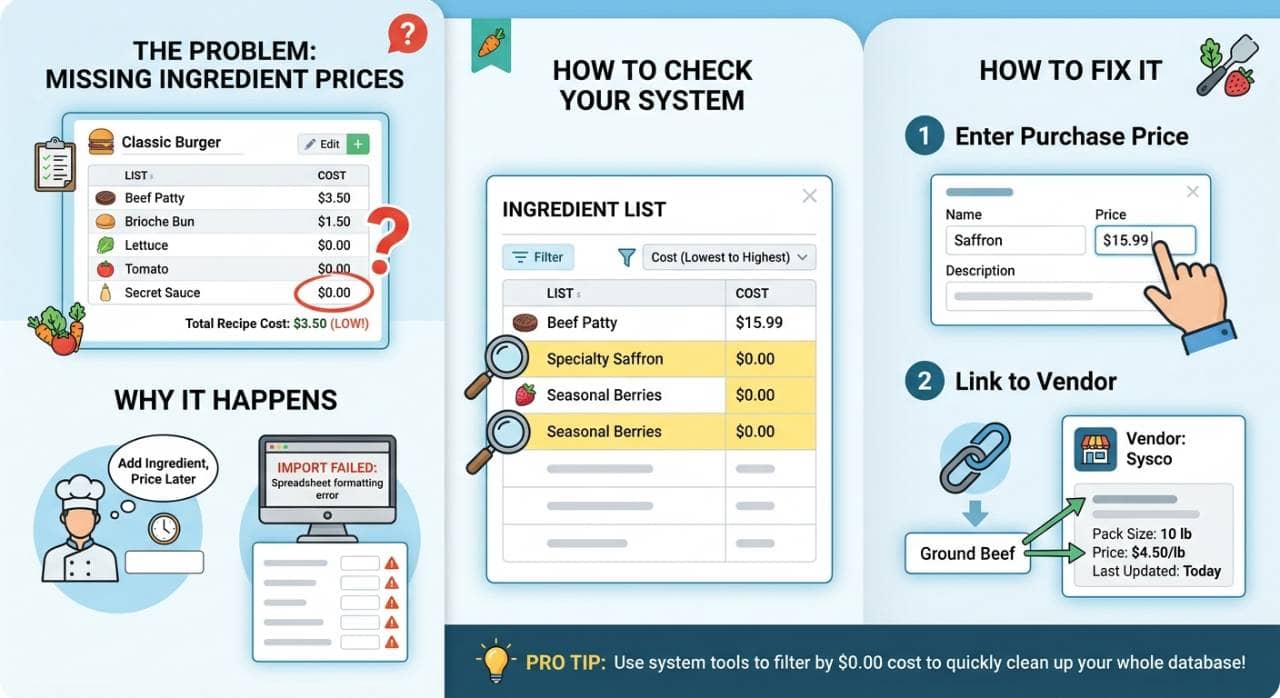
The most common reason for a zero recipe cost is also the simplest - one or more ingredients in the recipe have no price attached to them. Without a price, your system has nothing to calculate with, so it treats the ingredient as costing nothing. What It Looks Like You open a recipe and see that one ingredient line shows $0.00, or the cost column is blank beside it. If the missing ingredient is a major component, such as the protein in an entree, the total recipe cost may look suspiciously low. If it's the only ingredient or one of just a few, the whole recipe may show zero. Why It Happens This usually comes down to how ingredients get created. When you're building a recipe quickly, it's easy to add a new ingredient by name and move on, planning to come back and enter the price later. That follow-up step often gets forgotten. The same thing happens with bulk imports - if you upload an ingredient list from a spreadsheet or another system and the cost column is empty or formatted incorrectly, the items come in with no pricing at all. Seasonal and specialty items are another frequent culprit. An ingredient you only buy a few times a year may be set up once and never priced, or its price may have been cleared out when the system updated. How to Check Open your ingredient list and look at the cost field for each item used in the affected recipe. Any ingredient showing a blank or $0.00 cost is a candidate. If your system allows it, sort or filter the full ingredient list by cost, lowest to highest, so the zeros rise to the top. This lets you catch the problem across your whole database rather than one recipe at a time. How to Fix It Enter a price for the ingredient based on your most recent purchase. If your system supports vendor items, the better approach is to link the ingredient to a vendor item with a pack size and price, so the cost updates as your purchasing changes rather than staying fixed at a number you typed in once. Be sure to enter the price for the correct purchase unit, such as per case or per pound, since a correct price paired with the wrong unit can create problems of its own. Once the price is saved, return to the recipe and confirm the cost has recalculated. If it still shows zero, move on to the next cause.
Cause 2. No Purchase History Exists for the Ingredient
Some costing systems don't rely on a price you type in by hand. Instead, they calculate ingredient costs from your actual purchases, using the most recent invoice price, an average of recent purchases, or a weighted average over a set period. This keeps your costs tied to what you're really paying, but it creates a dependency - if there is no purchase record for an ingredient, there is nothing for the system to draw from. What It Looks Like The ingredient may have a name, a category, and even a unit of measure, but its cost field is empty or shows $0.00. Unlike Cause 1, where a price was never entered, here the system is waiting for purchase data that hasn't arrived. You may notice that other ingredients you buy regularly are costing correctly while the new or less frequent ones are not. Why It Happens The most common scenario is a brand-new ingredient. If you've just added a dish to the menu and are buying one of its components for the first time, no invoice has been processed yet, so no history exists. A similar thing happens when an ingredient is renamed or recreated. If you delete an old entry and set up a new one, the purchase history stays with the old record, leaving the new one blank. Timing can also be a factor. If your system calculates cost from purchases within a certain window, such as the last 30 or 60 days, an ingredient you buy only occasionally may fall outside that window and lose its cost. Delays in processing invoices produce the same result - the product is in your kitchen, but the invoice hasn't been entered or uploaded, so the system doesn't know it was bought. How to Check Open the ingredient's detail page and look at its purchase or invoice history. If the list is empty, or the most recent entry is older than your system's lookback period, you've found the cause. It's also worth confirming that you're looking at the right record, since duplicate ingredients with similar names can split your history across two entries. How to Fix It The permanent fix is to get the purchase into the system. Enter or upload the most recent invoice for that ingredient, or record the purchase manually if your system allows it. Once a purchase exists, the cost should populate automatically. If the invoice hasn't arrived yet and you need a working cost in the meantime, set a temporary manual cost so your recipe isn't sitting at zero. Make a note to remove or update it once real purchase data comes in, so the placeholder doesn't linger and become outdated. If you find duplicate ingredient entries, merge them so your history lives in one place.
Cause 3. Invoice Items Aren't Mapped to the Ingredient
If your system reads invoices to update costs, it needs to know which line on a vendor's invoice corresponds to which ingredient in your database. That link is called a mapping. When the mapping is missing or incorrect, the invoice gets processed, but the price never reaches the ingredient, and the recipe cost stays at zero. What It Looks Like You know you've bought the ingredient and the invoice has been uploaded or entered, yet the ingredient's cost still shows $0.00. When you open the invoice itself, one or more line items appear as unmatched, unmapped, or flagged for review. The data is sitting in the system, but it isn't connected to anything. Why It Happens Vendors describe products in their own way, and those descriptions rarely match the names you've given your ingredients. An invoice might list "CHKN THGH BNLS SKLS 40LB" while your ingredient is simply "Chicken Thighs." Your system can't guess that these are the same item until someone tells it. Mapping gaps tend to appear in a few common situations - 1. A new vendor. None of their product codes or descriptions have been matched yet. 2. Changed product codes. A vendor updates an item number or switches to a different brand or pack size, and the old mapping no longer applies. 3. Renamed or recreated ingredients. If you edit an ingredient name or build a new entry, the previous mapping may not carry over. 4. Skipped review steps. Invoices are uploaded and approved without anyone resolving the unmatched lines. How to Check Open the invoice review or invoice details screen and look for lines marked as unmapped, unmatched, or needing attention. Many systems also have a dedicated list of unmapped items across all recent invoices, which is the fastest way to see the full scope of the problem. Compare those lines against the ingredient that's showing zero. If the vendor item appears there, you've found your cause. How to Fix It Map each unmatched vendor item to the correct ingredient in your database. Take a moment to confirm the pack size and unit on the invoice line, such as a 40-pound case versus a 10-pound bag, so the cost is calculated properly once the mapping is saved. Mapping also tends to be a one-time task per item - once the link exists, future invoices from that vendor should update the ingredient's cost automatically. After mapping, check whether the system applies the new price to existing recipes right away or only after the invoice is reprocessed. If the recipe still shows zero, reprocess or re-approve the invoice, then reopen the recipe to confirm the cost has updated.
Cause 4. Unit of Measure Mismatches
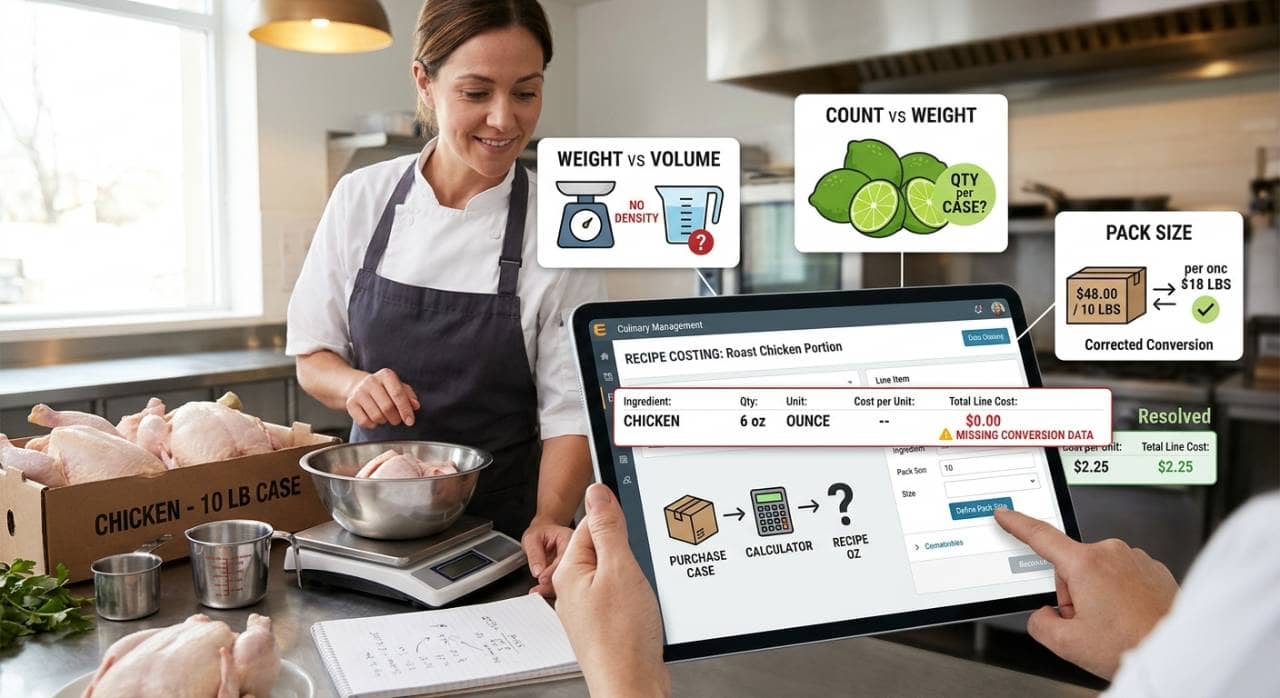
Even when an ingredient has a correct price, the system still needs to translate that price into the unit your recipe uses. If it can't make that translation, the price can't be applied to your recipe quantity, and the line may cost zero or a fraction of what it should. What It Looks Like The ingredient has a price, and the recipe has a quantity, but the line cost is still $0.00 or looks far too low. You might also see a warning about incompatible units or a missing conversion. In other cases there's no warning at all, just a number that doesn't make sense, such as a few cents for a full portion of steak. Why It Happens Purchase units and recipe units are often very different. You buy chicken by the case, but your recipe calls for ounces. You buy olive oil by the gallon, but you measure it in tablespoons. You buy limes by the case, but the recipe needs one lime. Your system can only bridge these gaps if it knows how the units relate to each other. Common mismatches include - 1. Missing pack size or case count. The system knows you paid $48.00 for a case but not that the case holds 10 pounds, so it can't calculate a per-ounce cost. 2. Weight versus volume. The ingredient is purchased by weight (pounds) but used by volume (cups), and no density or conversion has been defined. 3. Count versus weight. Items bought by the case or bag but used by "each," such as avocados or bread rolls, without a defined count per case. 4. Wrong unit selected on the recipe line. The recipe says 6 pounds when you meant 6 ounces, or uses a unit the ingredient isn't set up to convert. 5. Missing yield data. Ingredients with trim loss, such as whole produce or bone-in proteins, may need a yield percentage to cost accurately. How to Check Open the ingredient and compare three things - the purchase unit and pack size, the unit used on the recipe line, and any conversion settings in between. Look for blank pack size fields, units that belong to different measurement types, or conversions that were never defined. Then do a quick reasonableness check - divide the purchase price by the pack quantity and compare the result to the line cost in your recipe. If the numbers don't line up, the conversion is likely the culprit. How to Fix It Define the pack size and conversion factors so the system can move from purchase unit to recipe unit. For a case of chicken, that means entering 10 pounds per case so it can derive the price per ounce. For weight-to-volume or count-based conversions, enter the equivalent measurement, such as the number of ounces in a cup of that ingredient or the number of avocados in a case. Where possible, standardize the units you use across ingredients and recipes so conversions stay simple and consistent. Once the conversion is saved, return to the recipe and confirm the line now calculates a realistic cost.
Cause 5. Sub-Recipe (Prep Recipe) Configuration Problems
Many restaurant dishes rely on prep items made in-house, such as sauces, dressings, doughs, marinades, and spice blends. In a costing system, these are usually built as sub-recipes (sometimes called prep recipes) and then added to menu recipes as ingredients. This saves time and keeps costs consistent, but it also means a problem in one sub-recipe can affect every dish that uses it. What It Looks Like A menu item shows $0.00, or an unexpectedly low cost, even though all of its directly purchased ingredients are priced correctly. The line for the sub-recipe itself, such as "House Vinaigrette" or "Pizza Dough," shows zero. If several dishes share that sub-recipe, you may see the same problem across multiple menu items at once, which is a strong hint that the source is a single prep recipe. Why It Happens Because a sub-recipe is both a recipe and an ingredient, it can fail in either role. Common issues include - 1. No yield defined. The system needs to know how much the sub-recipe makes, such as 2 quarts of sauce or 40 ounces of dough, to calculate a cost per unit. Without a yield, it has no way to divide the batch cost. 2. Underlying ingredients missing costs. The sub-recipe's own ingredients may have the problems described in Causes 1 through 4, so the batch cost is zero and the zero passes upward. 3. Wrong quantity or unit in the parent recipe. The sub-recipe was added to the menu item using a unit that doesn't match its yield unit, such as "2 each" when the yield is measured in ounces, or the quantity was left blank. 4. Sub-recipe not fully saved or activated. It exists in the system but was never completed, or it was duplicated and the copy was left empty. Why Zeros Cascade Costs in a sub-recipe flow upward. If the batch of vinaigrette costs $0.00 to make, then every salad that uses it will carry $0.00 for that component, no matter how correct the rest of the salad is. This is why a single unconfigured prep recipe can quietly understate the cost of an entire section of your menu. How to Check Open the sub-recipe on its own and confirm it calculates a total cost and a cost per unit. Check that a yield and yield unit are entered. Then review each of its ingredients for the issues covered in the earlier causes. Once the sub-recipe shows a sensible cost by itself, open the parent recipe and look at how the sub-recipe line is set up, paying attention to the quantity and unit. How to Fix It Work from the bottom up. First, fix any ingredient pricing, purchase history, mapping, or unit problems inside the sub-recipe. Next, set the correct yield and yield unit based on what a typical batch actually produces. Then return to the parent recipe and make sure the sub-recipe is added with a quantity and a unit that match its yield. If the line still shows zero, remove it and add it again, since this can clear a stale or incomplete link.
Cause 6. Recipe Quantities Are Missing or Set to Zero
After working through pricing, purchase data, mappings, conversions, and sub-recipes, the last cause is the most basic one - the recipe itself may not contain the numbers it needs. A perfectly priced ingredient still contributes nothing if the quantity on the recipe line is blank or zero. What It Looks Like The ingredient shows a valid price when you open it on its own, but the line in the recipe costs $0.00. When you look at that line, the quantity field is empty, shows 0, or displays a value so small it rounds down to nothing. In other cases, the line costs are all reasonable, yet the cost per portion is zero or far off because of a problem with the recipe's yield. Why It Happens This one is usually a data entry issue, and it tends to slip through because the recipe looks complete at a glance. Common situations include - 1. Blank or zero quantities. An ingredient was added to the recipe but the amount was never filled in, or a placeholder of 0 was left behind. 2. Wrong unit selected. The quantity is correct, but the unit is wrong, such as 0.5 pounds entered as 0.5 ounces, which produces a cost far lower than it should be. 3. Decimal and formatting errors. A value like 0.05 was entered instead of 0.5, or a comma was used where the system expects a period, causing the number to be misread. 4. Incorrect portion count or yield. The recipe's total cost may be calculated correctly, but if the number of portions is missing, set to zero, or far larger than the dish actually produces, the cost per portion will be zero or misleadingly small. 5. Imported recipes. Recipes brought in from spreadsheets or another system can arrive with quantity columns that failed to map properly. How to Check Open the recipe and scan every ingredient line, checking the quantity and unit side by side. Look for blanks, zeros, and amounts that don't make sense for the dish, such as a few grams of a main protein. Then check the recipe's yield or portion count and confirm it matches the number of servings the recipe actually makes. A quick reasonableness test is to compare the total cost against what you would expect to spend on the main components, which makes outliers easy to spot. How to Fix It Enter the correct quantity and unit for each affected line, and double-check any decimals. Then confirm the portion count reflects the real number of servings, so the cost per portion is calculated from the right total. Once saved, the recipe should recalculate immediately. If the cost still shows zero after you've verified quantities and yield, return to the earlier causes and work through the checklist in the next section.
A Quick Troubleshooting Checklist
When a recipe shows zero, it's tempting to start with whatever seems most likely. A better approach is to work through the causes in order, starting with the fastest checks and moving toward the ones that take more digging. This keeps you from spending twenty minutes tracing a sub-recipe when the real problem is a blank quantity field. Work Through These Steps in Order 1. Check recipe quantities and portion yield. Open the recipe and scan each ingredient line for blank or zero quantities and incorrect units. Confirm the portion count matches the number of servings the recipe actually makes. This takes under a minute and rules out the simplest cause first. 2. Check each ingredient for a price. Look at the cost field for every ingredient in the recipe. Any that show blank or $0.00 need a price entered or a vendor item linked. 3. Review purchase history and invoice mapping. For ingredients that pull cost from invoices, confirm that a recent purchase exists and that the vendor line item is mapped to the right ingredient. Resolve any unmapped items and reprocess the invoice if needed. 4. Verify units of measure and conversions. Compare the purchase unit, pack size, and recipe unit for each ingredient. Fill in any missing pack sizes or conversion factors so the system can translate between them. 5. Inspect any sub-recipes separately. Open each sub-recipe on its own and confirm it has a yield, a yield unit, and a sensible total cost. Fix its underlying ingredients first, then check how it's added to the parent recipe. After each fix, return to the recipe and confirm the cost has recalculated before moving to the next step. That way you'll know exactly which change resolved the problem, which makes it easier to spot the same issue elsewhere. A Tip for Catching Zeros Faster Rather than checking recipes one at a time, use your system's sorting and filtering tools to find problems across your whole database. Sort your ingredient list by cost from lowest to highest, and the blanks and zeros rise to the top. Do the same with your recipe list, sorting by cost per portion, to spot dishes that look too cheap to be true. If your system has a dedicated list of unmapped invoice items, check it regularly as well. A few minutes of sorting can reveal dozens of gaps at once.